Create a service account
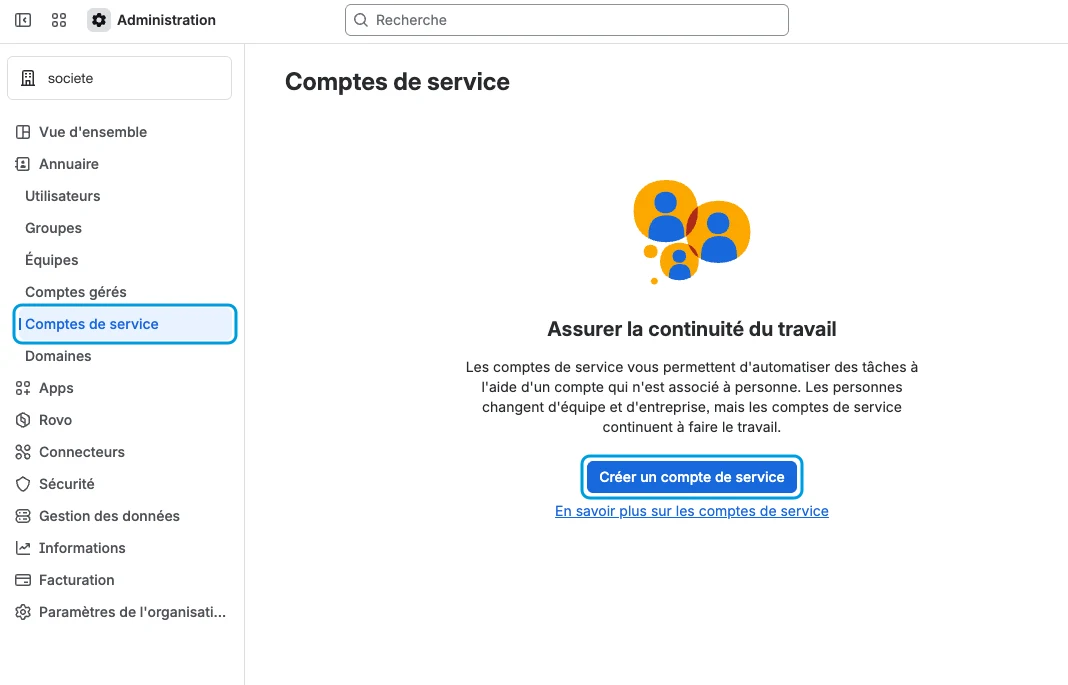
An administrator of the Atlassian organization opens admin.atlassian.com, then Directory and Service accounts. Click Create a service account and name it Klepsi.
A service account is not tied to any person. It survives departures, and its rights are easy to review.
Give it the agent role, with no group
The wizard then asks for a role for each app:
- Jira Service Management: User (agent). This role is required to read tickets. A portal customer only sees their own requests.
- Customer Service Management, Assets, Studio and Jira Administration: None.
Leave the Groups field empty, then click Create.
site-admins, administrators or jira-admins-…:
these groups grant administration rights. jira-servicemanagement-customers-… is useless, it is the group of portal customers.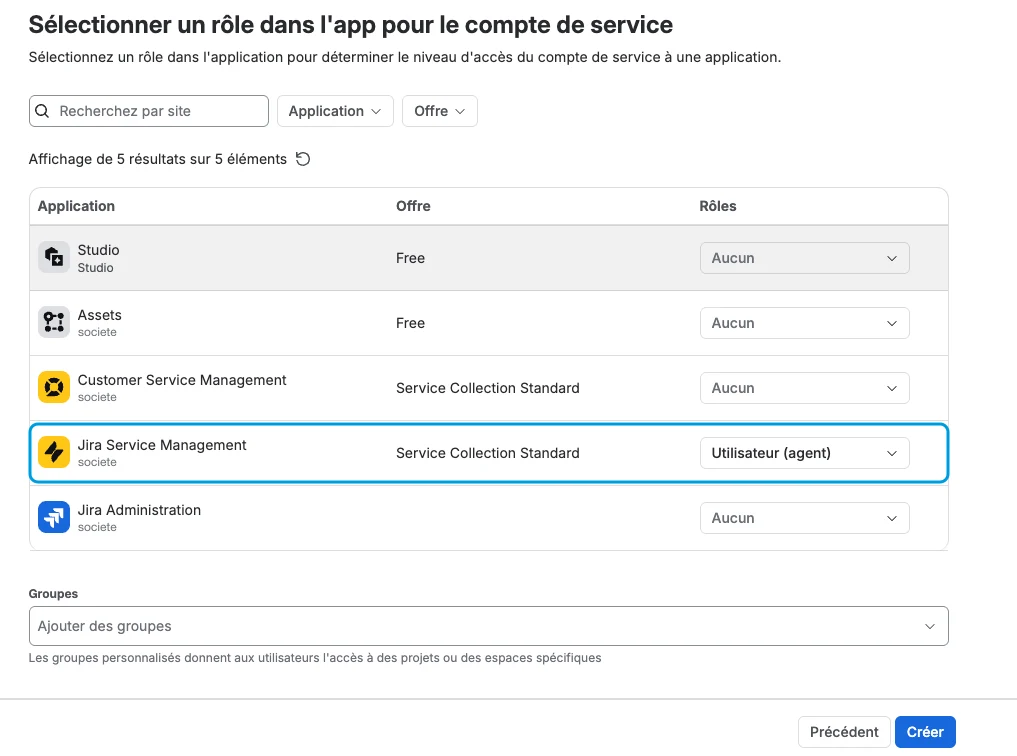
Open the projects to follow
The agent role is not enough: the account must be a member of each project whose tickets Klepsi has to read. In Jira, open the project, then Project settings and People (Access in a team-managed project).
Click Add people, search for Klepsi or paste its address, choose the role Service Desk Team (Agent in a team-managed project) and confirm with Add 1 person. Repeat for each project.
Create an API token
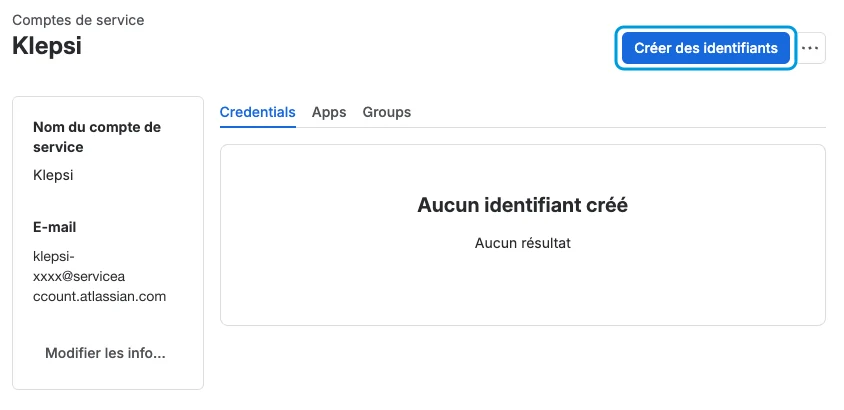
Go back to the Klepsi account page in admin.atlassian.com and click Create credentials. Choose API token, not OAuth 2.0.
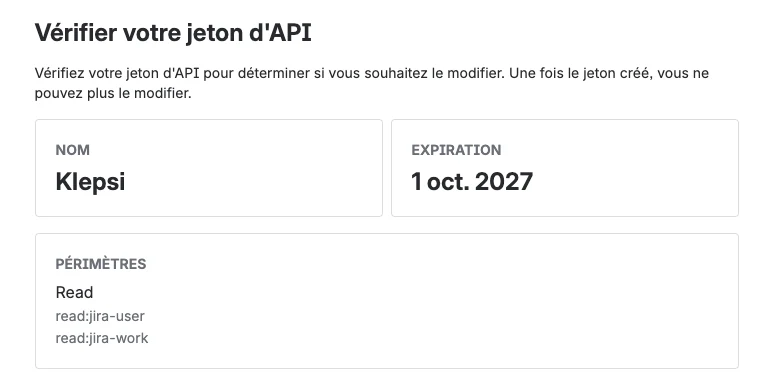
Name the token Klepsi and pick the longest expiry offered, one year today. Put the date in your calendar: after that day, Klepsi can no longer read anything.
Also note the address shown under Email, ending in
@serviceaccount.atlassian.com. You will need it in Klepsi.
Limit the token to read access
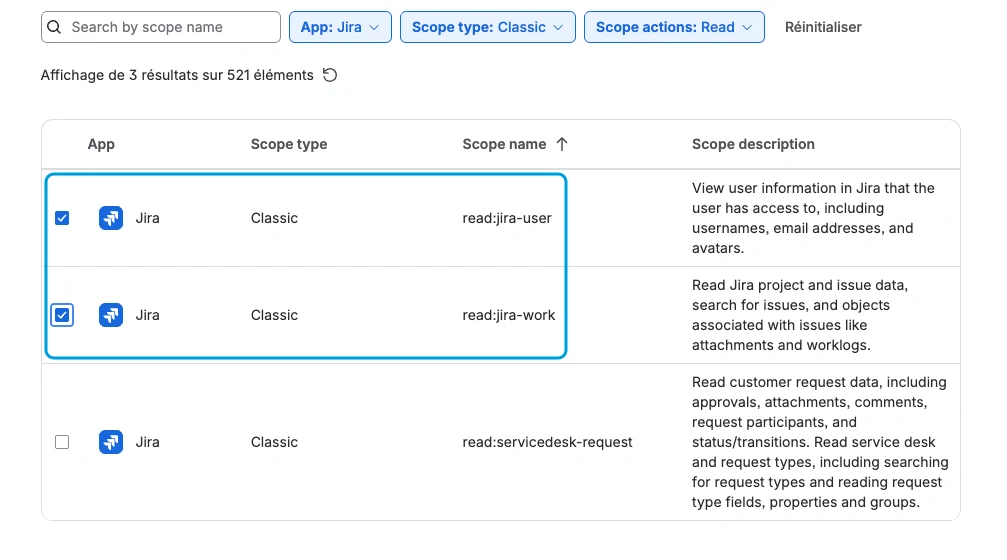
Choose the Jira app and tick two classic scopes:
read:jira-user and read:jira-work. Nothing else.
Do not tick read:servicedesk-request: it opens the Service Desk API, which Klepsi does not use.
If only granular scopes are offered, take read:jira-user, read:issue-details:jira,
read:jql:jira and read:project:jira.
Copy the token right away
The review screen repeats the name, the expiry and the scopes. Create the token.
It is shown only once. Paste it into Klepsi (step 8) and store it in your password vault. If it is lost, it cannot be recovered: create another one.
Find the cloudId of your site
A service account token does not work on the usual site address. It goes through the Atlassian gateway, which needs the site identifier, the cloudId.
Open this address in a browser, replacing societe with the name of your site:
https://societe.atlassian.net/_edge/tenant_info

{"cloudId":"1a2b3c4d-0000-0000-0000-000000000000"}Fill in the connection in Klepsi
In Klepsi, open Settings, Integrations tab, then Add a connection:
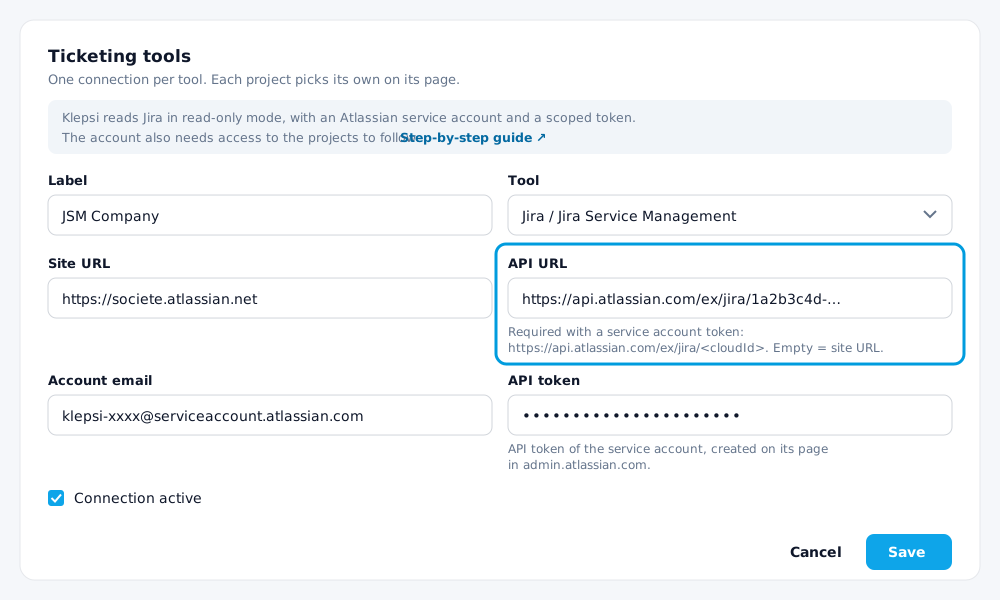
- Label: a name for yourself, for example "JSM Company". The grey text is only an example, the field is empty.
- Tool: Jira / Jira Service Management.
- Site URL:
https://societe.atlassian.net. It is used to build the links to tickets. - API URL:
https://api.atlassian.com/ex/jira/<cloudId>. Required with a service account token: the site URL rejects it. - Account email: the
@serviceaccount.atlassian.comaddress noted in step 4. - API token: the token copied in step 6.
Test, then link your projects
Click Save, then Test the connection. Klepsi shows the name of the account it recognized.
Then open the page of each Klepsi project concerned. In the Tickets block, choose the Connection and enter the Jira project keys. The JSM organization and the Extra JQL are optional, to keep only the requests of one customer.
Try it while entering time: the Ticket field should offer tickets after the first few letters.
Renew the token before it expires
A few days before the date you noted, create a new token on the account page, with the same scopes. Paste it into Klepsi by editing the connection, then check that a ticket search works. Revoke the old token only after that.
If something goes wrong
Error 401 (shown in French: "Jira a répondu 401"): the token or the account email is wrong, or the API URL field was left empty. With a service account, the site URL is not enough.
The test succeeds but no ticket appears: the account has no role in the Jira project (step 3), or the project key entered on the Klepsi project page does not match.
The token has expired: Jira rejects the calls. Create a new one as described above.
What Klepsi calls in Jira
For your security team, here is the complete list. There are three calls, all read-only:
GET /rest/api/3/myself: the connection test.GET /rest/api/3/user/search: find the Jira account of a Klepsi user from their email address, to offer them their tickets.POST /rest/api/3/search/jql: the ticket search. It is a POST, but it changes nothing.
Need help?
Our support team can walk you through the setup. Write to us at support@aleop.eu.