Help / Microsoft sign-in
Sign in to ALEOP with Microsoft
Your ALEOP account can use your work Microsoft 365 account to sign in. Here is how, and what to do if an unusual screen shows up.
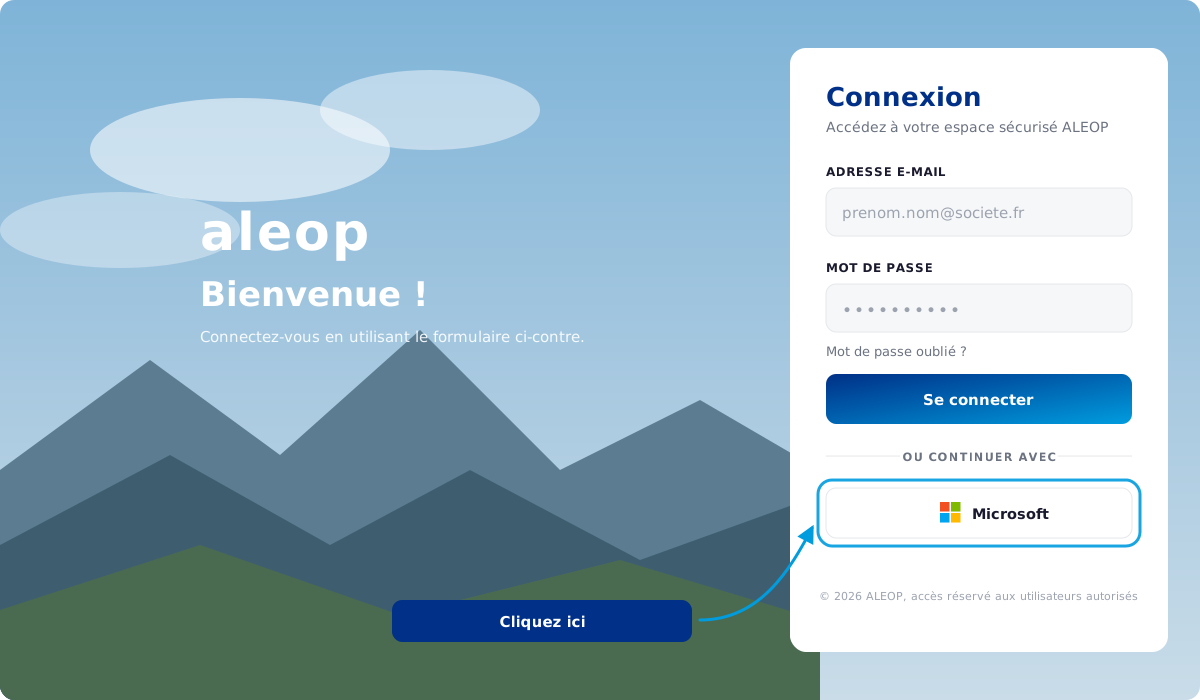
Click "Sign in with Microsoft"
Go to the portal apps.aleop.eu, then click the "Sign in with Microsoft" button (shown as Se connecter avec Microsoft). Sign in with your usual work Microsoft 365 account.
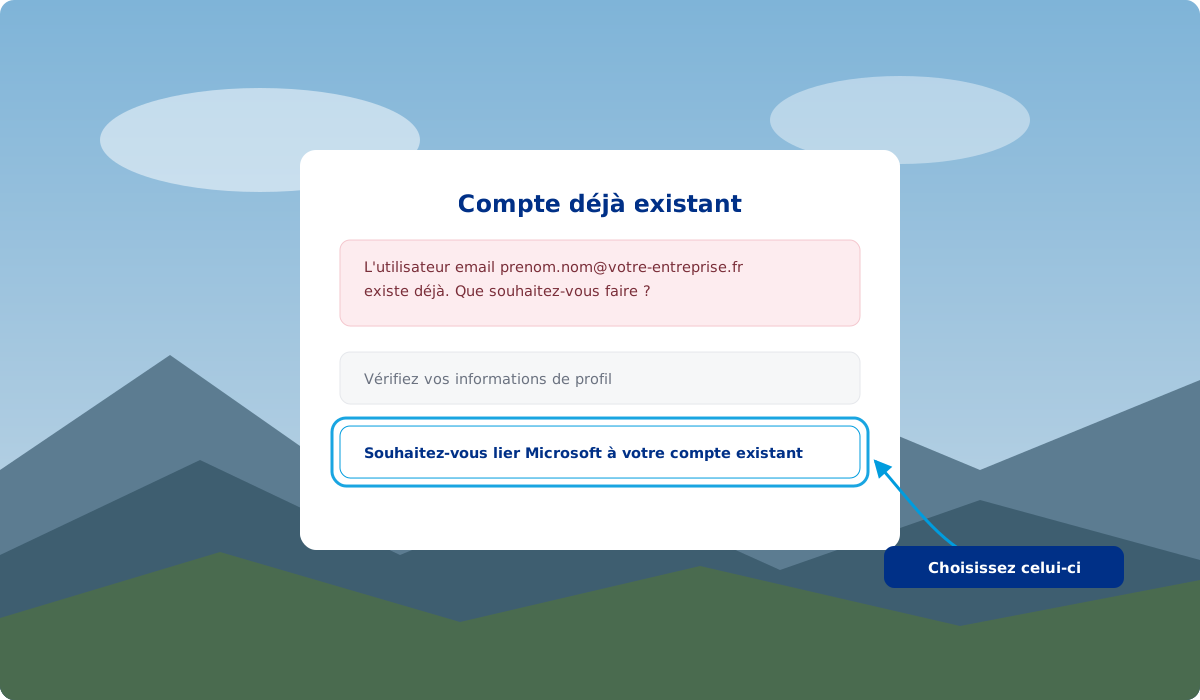
Link your ALEOP account
A screen says that your account already exists. This is expected, and it happens only once. Choose "link Microsoft to your existing account", then confirm your identity: with the ALEOP password received by email, or with the validation link sent to you.
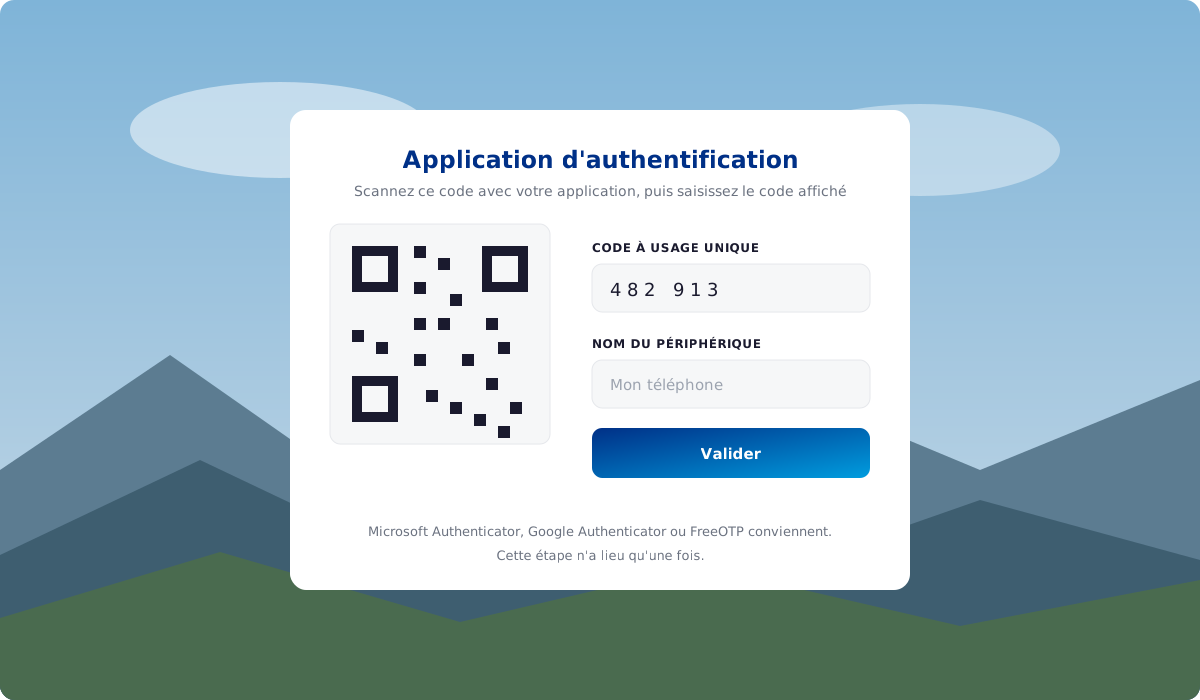
Set up your authenticator app
The portal then asks for a 6-digit code generated by an authenticator app (Microsoft Authenticator, Google Authenticator, FreeOTP). Scan the QR code shown, type the code, done. This step is mandatory, even when signing in through Microsoft. Your next sign-ins then take one click.
If a "Need admin approval" message shows up
This message comes from the security policy of your own Microsoft organisation, which has to authorise the ALEOP application. You cannot unblock it yourself: only the Microsoft 365 administrator of your company can.
- Tell the IT department of your company about this approval request, or
- Write to us at support@aleop.eu: we will give your administrator the approval link to validate (once for the whole company).
In the meantime you can sign in with the ALEOP username and password received by email, without going through Microsoft.
Need help?
Our support team is there for your first sign-in. Write to us at support@aleop.eu.
Open the portal